Transcribing PDF Plans to Excel
I. OVERVIEW
StructDB allows a document list (table) to be imported from Excel. This import is only done once at the beginning of a project, during the Plan and Cost phase. The document list does not include the actual binary documents, just metadata about the plans.
This document describes the process that you should refer to when preparing Excel documents from PDF plans.
II. WORKFLOW
1. Notification
You will receive an email from a consultant with the subject in the form of
PNC PLANS TRANSCRIPTION - <PROJECT>
The email will either have attached a PDF containing the plans, or a download link will be provided. This PDF will probably have undergone OCR, but not necessarily.
The consultant is responsible for including, in the body of the email, any other pertinent information necessary to complete the transcription, if any.
2. Transcription
The preparer transcribes the PDF document into an Excel document conformant to the input template provided below.
3. Response
The preparer will reply to the original email, attaching the Excel file. Any other notes the preparer wishes to make should go in the body of the email. Notes can include, "Difficulty reading line XXX", etc.
III. IMPORT TEMPLATE
You can always download the import template for plans here.
| Type/Code | Description | Download Link |
|---|---|---|
| PNC | Plan Set |  |
Before you enter in data, you must delete all sample data. Make sure that you keep the table header names, however.
The easiest way to do this is to select the first data cell in the table, for example, the first cell under DocumentTitle, then type CTRL+SHIFT+END, then press DELETE.
IV. HOW TO TRANSCRIBE
A Plan Set will have a plan on each page. Here is one with the pertinent information indicated:
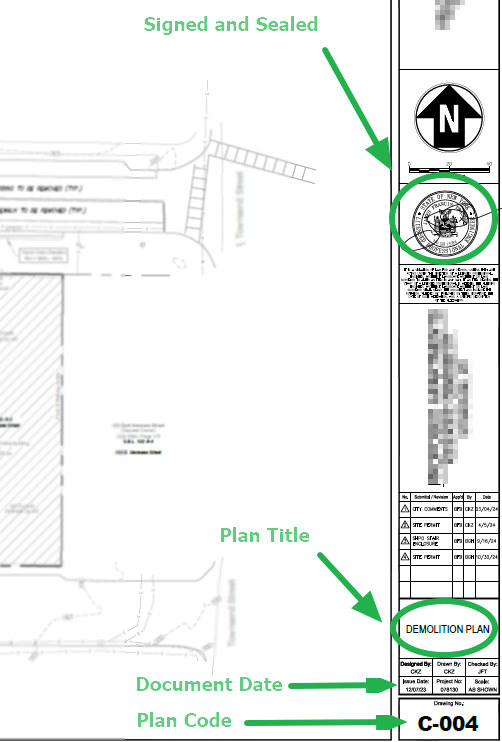
All plan transcriptions will have the same columns.
DocumentTitle: Combine the Plan Title with a the Plan Code, separated by aSPACE+-+SPACE. In the example above, the value would beDEMOLITION PLAN - C-004DocumentDate: Use the date shown on the page's sidebar, per the example aboveDocumentCategory: This will always bePlan and CostDocumentSubCategory: This will always beI. PLANS AND SPECIFICATIONSSignedAndSealed: If you see a seal with a signature, as shown in the example above, enterTRUE, else enterFALSE.